
This is an old revision of the document!
Table of Contents

Conducting the e-exam
Send the login details to the exam participants in advance (details under Importing the participant list and generating the TAN lists). The (preset) processing time begins for each student as soon as the access data (TAN and student ID number) has been entered and the exam paper has been loaded.
In the exam details under Exam details in Actions, you can set when the exam can be opened and when participants can enter the exam under Scheduled events. You can also block exam entry in Actions. If exam entry is blocked, no more participants can enter the exam, but participants who are already logged in can continue working on the exam and submit it.
Students can manually submit their exam during the processing time by clicking Submit. At the end of the processing time, the status is saved automatically. You can close the entire e-exam and end data collection when you are sure that all students have submitted their exams. Once the exam is closed, no further data records can be submitted. When you close the exam, the system checks whether all generated TANs have been used. If this is not the case, a message will appear so that you can leave the exam open until all exam papers have been submitted.
Overview of the current exam
The exam dashboard provides you with an overview of the current status of the e-exam and contains new options for viewing the status of exam participants and editing it during the exam. You can access the dashboard via the menu item Exam details in the Actions area. The dashboard is displayed immediately after the exam has been created and, in addition to general information about the exam, provides a tabular overview of the exam participants and TANs. Each row corresponds to one exam participant.
The status of the exam participants is indicated by a colored icon in the first column. The following status indicators are possible: * Gray: Participant has not yet started the exam * Green: Participant has started the exam * // Yellow: Participant's status is unclear * //Red: Participant is no longer in the exam; the exam was not completed normally
-
Green with check mark: Participant has successfully submitted the exam
-
As soon as the first participants have logged in, the status changes to green. You can also see when the candidate logged into the exam and when the last automatic save took place.
* Once candidates have completed their exam and clicked Submit, a white check mark appears in the green status display.
-
During the exam, candidates who have been inactive for 10 minutes will be displayed with the status yellow if no cached data is available.
* After completing the exam, candidates who were unable to complete the exam normally will be marked red by the system. Cached data, if available, can be transferred to the exam evaluation.
If you have set up a start screen with a timer (see above, Fig. 1) Creating an e-template, students will see the following screen:
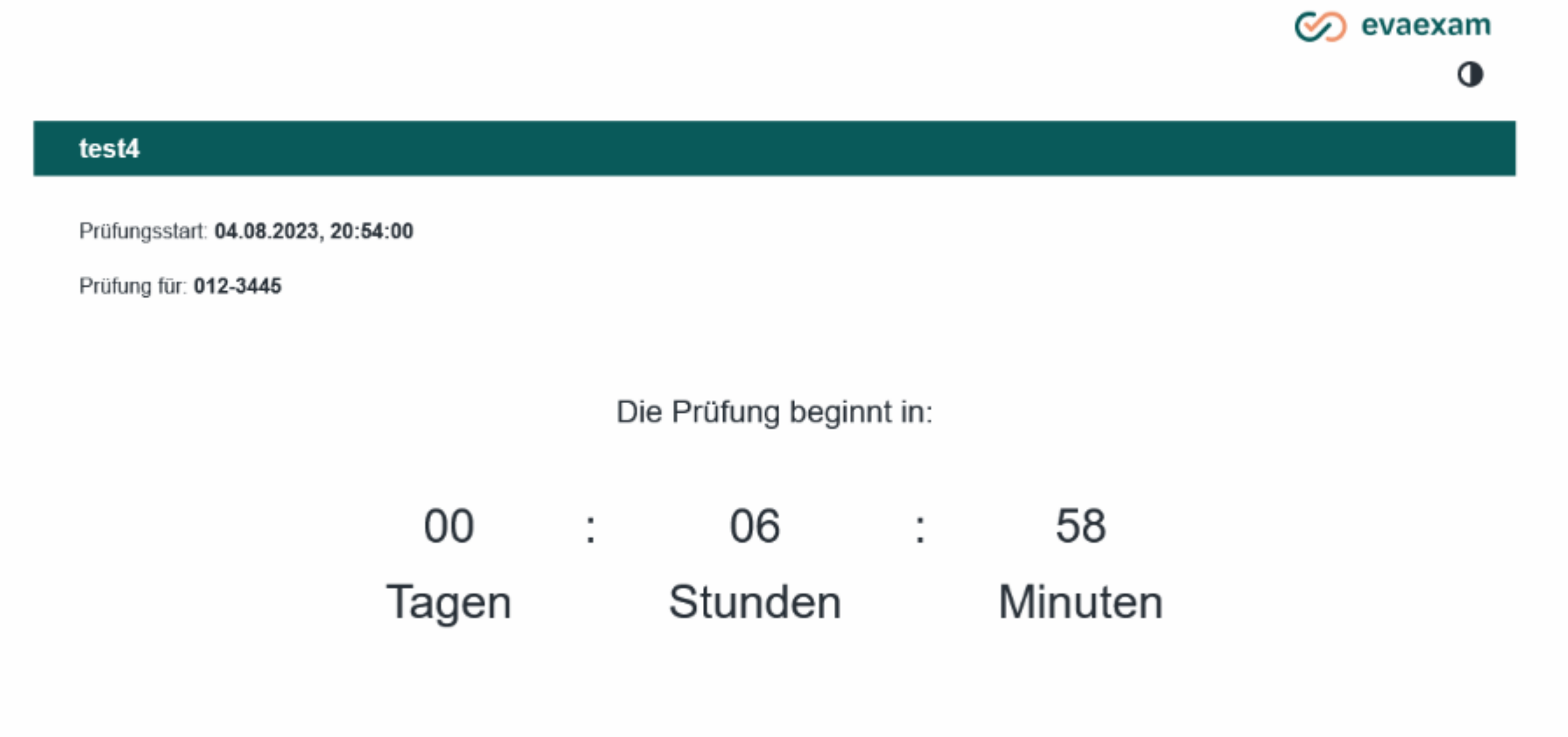
Fig. 1: Students' view of the start page with timer, query field, and option to log out of the exam Lock/unlock TANs
The “Lock/Unlock TAN” function in the exam dashboard allows you to change the status of a TAN. If examinees accidentally leave the exam and the TAN is “used up,” the TAN can now be manually reactivated using the “Unlock TAN” function. If the participant now logs in again with the TAN, the exam will load and display the status of the last temporary save. The remaining time is shown in the header of the exam.
Please note that in the case of time-limited exams, the exam participants' time continues to run. After logging in again with the TAN, only the remaining time (measured from the original start of the exam) is available. If the time has already expired, re-entry is not possible. In addition, unlocking the TAN for this examinee removes the block on exam entry (if defined in “Scheduled Events”). This means that late entry is possible.
-
